
Appearance
Installation and setup
Extract the portable Windows release, connect your Marvel's Spider-Man 2 TOC file, and optionally configure Overstrike for one-click mod testing.
Luna Tools is distributed as a portable Windows application. You do not need to run an installer or install any external runtimes before launching the editor.
Key terms to know first
Before opening the editor, you only need to know three terms:
| Term | Plain-English meaning |
|---|---|
TOC (toc) | Short for Table of Contents. This single index file inside your Marvel's Spider-Man 2 game folder tells Luna Tools where every asset lives inside the game archives. Luna Tools only reads your game files and never overwrites them. |
| Stage | A normal folder on your computer that acts as your mod's project folder. Whenever you edit a game asset or create a new one, Luna Tools saves your modified copy inside your Stage folder instead of touching your game installation. |
.stage file | A finished mod package (a ZIP archive ending in .stage) exported from your Stage folder. You install .stage files into the game with Overstrike. |
System requirements
| Requirement | Details |
|---|---|
| Operating system | Windows 10 or Windows 11 (64-bit). |
| Graphics card | A DirectX 12 compatible GPU is required for 3D viewports (models, materials, zones, animations, and cinematics). Data editors such as .config still work without 3D previews. |
| Game installation | A PC copy of Marvel's Spider-Man 2 is required to browse retail game archives and test mods in game. Without the game configured, you can still open standalone files on disk and the included examples/ folder. |
| Mod manager (optional) | Overstrike is used when you are ready to install and test your exported .stage mods in game. |
Extract and launch Luna Tools
To install and open Luna Tools on Windows:
- Download the
LunaTools-<version>-beta.ziprelease archive. - Extract the entire ZIP archive into a normal writable folder on your PC, for example:text
D:\Tools\LunaTools\ - Make sure
RenderDLL.dll,D3D12,shaders, and_internalremain in the same folder next toLunaTools.exe. - Double-click
LunaTools.exeto launch Luna Tools.
WARNING
Do not run LunaTools.exe directly from inside Windows File Explorer's ZIP preview, and avoid extracting into C:\Program Files\ or C:\Program Files (x86)\. Luna Tools writes your preferences (lunatools_settings.json), search cache (cache/), and error logs (logs/) directly beside LunaTools.exe, so that folder must allow normal file writes without administrator prompts.
TIP
When upgrading to a newer version of Luna Tools later, extract the new release into a fresh folder rather than pasting over an older release. To keep your settings and recent Stage list, copy lunatools_settings.json from your previous folder into the new one.
Connect your game installation (toc)
Point Luna Tools to your Marvel's Spider-Man 2 toc file so the Asset Browser can search and open retail game assets:
- In the top menu bar, select Tools > Set Game TOC File...
- Select Browse... and navigate to your Marvel's Spider-Man 2 game folder. Common paths include:
- Steam:
C:\Program Files (x86)\Steam\steamapps\common\Marvel's Spider-Man 2\toc - Epic Games:
C:\Program Files\Epic Games\MarvelsSpiderMan2\toc
- Steam:
- Select the file named
toc(with no file extension) and select OK.
Verify that the TOC loaded
After Luna Tools finishes indexing the toc file:
- Open the Game tab in the Asset Browser on the left side of the window.
- Confirm that top-level folders such as
actors,characters,configs,levels,materials,models, andtexturesappear in the tree. - Check the status line at the bottom of the Game tab, which displays the total asset count (for example,
424,933 assets available from retail TOC).
Common TOC questions
- Which file do I choose if I see both
tocandtoc.BAK? Selecttoc. Overstrike createstoc.BAKas a backup of your clean retail index when mods are installed. If you want to guarantee that you are viewing unmodded retail files while editing, disable active mods in Overstrike first. - Why do a few assets show hexadecimal IDs (such as
0x8F4C...) instead of folder names?Marvel's Spider-Man 2 stores assets internally by numeric hash IDs rather than string filenames. Luna Tools bundles an asset hash lookup table so known retail assets display readable paths, while any unrecognized IDs fall back to their hex ID. Refer to Local data and dependencies if names are missing.
Configure Overstrike for one-click testing (optional)
You can always export a .stage file manually and drag it into Overstrike yourself. If you want the Test and Test Stage & Launch buttons in Luna Tools to package, install, and launch your active mod automatically:
- Select Edit > Preferences... (or press Ctrl+,) and open the Paths tab.
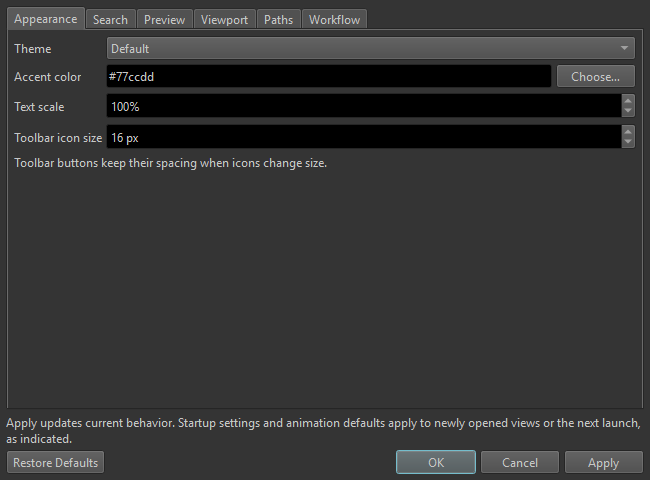
- Configure any paths you want to automate:
- Default workspace: Optional default folder opened in the Local browser tab.
- Default export folder: Optional default destination when exporting
.stagepackages, JSON dumps, or PNG textures. - Overstrike executable: Select Browse... and choose
Overstrike.exe. - Game / launcher: Choose the game executable, a shortcut (
.lnkor.url), or enter a launcher URI such assteam://rungameid/2651280.
- Select OK to save your preferences.
NOTE
When you run Test Stage, Luna Tools builds a temporary .stage package inside its own cache and instructs Overstrike to install only your active Stage in an isolated test pass, without mixing in other mods from your regular Overstrike profile.
Additional resources
- Stages and project files: Learn how Stage folders protect your game installation and organize mod files on disk.
- The Luna Tools interface: Explore the Asset Browser tabs, document toolbar, Inspector, Output log, and 3D camera controls.
- Make your first mod: Edit a gameplay config, build a custom texture from a PNG, and export a
.stagemod. - Troubleshooting: Fix blank 3D previews, missing hash names, or startup issues.