
Appearance
Make your first mod
Walk through editing a retail gameplay config, compiling a custom PNG texture with the Asset Wizard, and exporting a playable .stage mod package.
Every task in Luna Tools follows one of two straightforward patterns:
- Edit an existing game asset: Open an asset from the Game tab, modify its properties, and press Save (Ctrl+S). Luna Tools writes your modified copy into your Stage's
0/folder. - Build a custom asset from a project file: Use the Asset Wizard (Ctrl+N) to create an editable project file (such as
.lttextureor.ltsurface), save your settings, and press Build (F7) to compile native game binaries into0/(and1/).
This tutorial walks through both workflows from start to finish so you can verify everything works before starting a larger project.
Prerequisites
Before starting, complete Installation and setup:
- Luna Tools is running.
- Your Marvel's Spider-Man 2
tocfile is configured so assets appear in the Game tab. (Part 2 also works without a retailtocconfigured.)
Part 1: Edit a gameplay .config and export a .stage mod
In this walkthrough, you will create a clean practice Stage, preview a 3D model, modify a .config asset, confirm that your edit persisted cleanly, and package a .stage mod file.
Step 1: Create a practice Stage
- Press Ctrl+Shift+N (or select Stage > New Stage...).
- Enter
PracticeModfor Mod Name. - Enter your name or handle for Author.
- Select Browse... and choose a parent folder such as
D:\Mods, so Stage Folder readsD:\Mods\PracticeMod, then select OK.
Step 2: Preview a 3D model (optional warm-up)
Before editing any data, open a model to verify 3D rendering and browser search:
- Select the Game tab in the Asset Browser.
- Set the Format filter dropdown to
.model. - Type
spiderman(or any prop or character keyword) in the search bar and press Enter. - Double-click any
.modelresult to open it in the Object Viewer:- Left-drag on empty background space to orbit, right-drag to pan, and scroll to zoom.
- Press Ctrl+W to close the tab when finished. Opening and viewing assets never modifies your Stage.
Step 3: Open and edit a .config file
- In the Game tab, change Format to
.configand search for a config file (for example,photo,difficulty, orhero). - Double-click a
.configasset to open the Config Editor. - In the Configuration Properties tab, locate the two-column tree (Configuration Property and Value).
- Change a simple numeric value or checkbox in the Value column. Notice that the tab title now begins with
*, showing unsaved changes.
NOTE
Config, Actor, and Conduit editors also provide a JSON Source tab for raw text editing. If you edit text inside JSON Source, select Apply JSON Changes before saving. Edits made in the visual Configuration Properties tree apply immediately.
Step 4: Save to your Stage and verify
- Press Ctrl+S (or select Save in the tab toolbar).
- Confirm all three indicators of a clean save:
- Game tab: The
.configentry highlights in green with[STAGED]beside its name. - Stage tab: Switch to the Stage tab and expand
0to see your saved.configfile at its matching folder path. - Reopen check: Close the tab (Ctrl+W), double-click the same asset again, and confirm your updated value loads back in.
- Game tab: The
Step 5: Export your .stage package
- Press Ctrl+E (or select Export in the Stage tab toolbar).
- In the Export Stage Mod (.stage) dialog, verify that your Stage summary lists
Files to pack: 1 file(s). - Choose a destination for
PracticeMod.stageand select Export .stage.
You now have a valid PracticeMod.stage package ready for Overstrike:
- Test manually: Drag
PracticeMod.stageinto Overstrike, enable it, and launch Marvel's Spider-Man 2. - Test in one click: If you configured Overstrike in Installation and setup, select Test (or Test > Test Stage & Launch) in the Stage tab.
- Clean up afterward: Right-click the
[STAGED]file in the Stage or Game tab and select Revert to Game Retail to remove the practice override fromPracticeMod.
Part 2: Build a game .texture from a PNG image
Next, use a project file workflow to convert a standard .png image on your PC into compiled .texture spans inside your Stage.
Step 1: Create a Texture project with the Asset Wizard
- Press Ctrl+N (or select File > New Asset...).
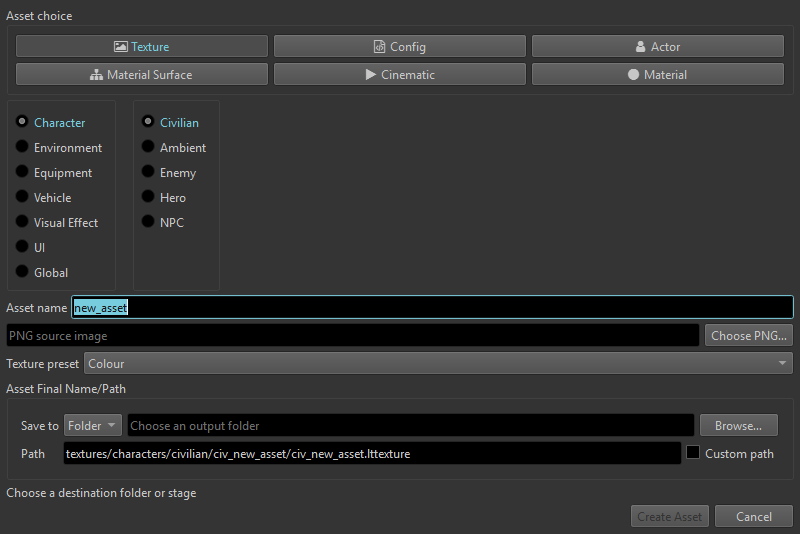
- Under Asset choice, select Texture.
- Pick a category (such as Character > Hero or UI) to prefill a standard folder layout, or enable Custom path to enter your own path.
- Enter
my_custom_logofor Asset name. - Select Choose PNG... and pick any
.pngimage from your computer (for example, a 512x512 or 1024x1024 PNG). - Keep Texture preset set to Colour (use Normal for normal maps or Mask for packed grayscale masks).
- Under Asset Final Name/Path, set Save to to Stage so the project saves inside
PracticeMod/sources/.... - Select Create Asset.
Step 2: Compile the native .texture spans
Creating the asset opens my_custom_logo.lttexture. Because .lttexture is your editable recipe, you compile it once to generate the binary .texture files that the game reads:
- Press Ctrl+S if you changed any compression or mipmap options.
- Select Build Texture... in the asset toolbar (or press F7).
- Select your active Stage (
PracticeMod) and confirm the target virtual path (for example,textures/ui/my_custom_logo.texture).
Step 3: Inspect the generated files
Open the Stage tab in the Asset Browser to inspect what Luna Tools generated:
sources/holds your editable.lttexturefile so you can swap the source PNG or adjust settings at any time.0/textures/...and1/textures/...contain the compiled base and high-resolution.texturebinaries.- Double-click the compiled
.textureunder0/to open the Native Texture Inspector, where you can inspect individual mip levels, R/G/B/A channels, and compressed byte sizes.
When you export the Stage (Ctrl+E), Luna Tools packs 0/ and 1/ into the .stage archive automatically while keeping sources/ safely inside your project folder.
Where to go next
| Goal | Recommended documentation |
|---|---|
| Understand how engine systems connect | Core concepts and architecture |
| Create custom suit materials or shader graphs | Reusable materials and surfaces and Asset Wizard |
Edit .actor, .config, .conduit, .atmosphere, or .save assets | Asset editors and Actors and assets |
| Place objects and actors inside 3D city scenes | Zones and Levels |
| Build gameplay logic, triggers, and mission flows | Scriptgraphs and First scriptgraph |
| Author cutscenes, animations, or custom sound events | Cinematics, Animation, and Audio |
Additional resources
- Stages and project files: Reference for
0/,1/,sources/, and virtual paths. - Asset types and support: Complete table of supported Marvel's Spider-Man 2 file formats.
- Troubleshooting: Solutions for common viewport, TOC, and export problems.