
Appearance
The Luna Tools interface
Navigate the Asset Browser tabs, document toolbar, context-sensitive Inspector, Output log, and 3D viewport camera controls in Luna Tools.
Luna Tools keeps its workspace uncluttered until you open an asset. Secondary docks remain hidden until a selected item needs them, so most of your screen stays focused on the active editor or 3D viewport.
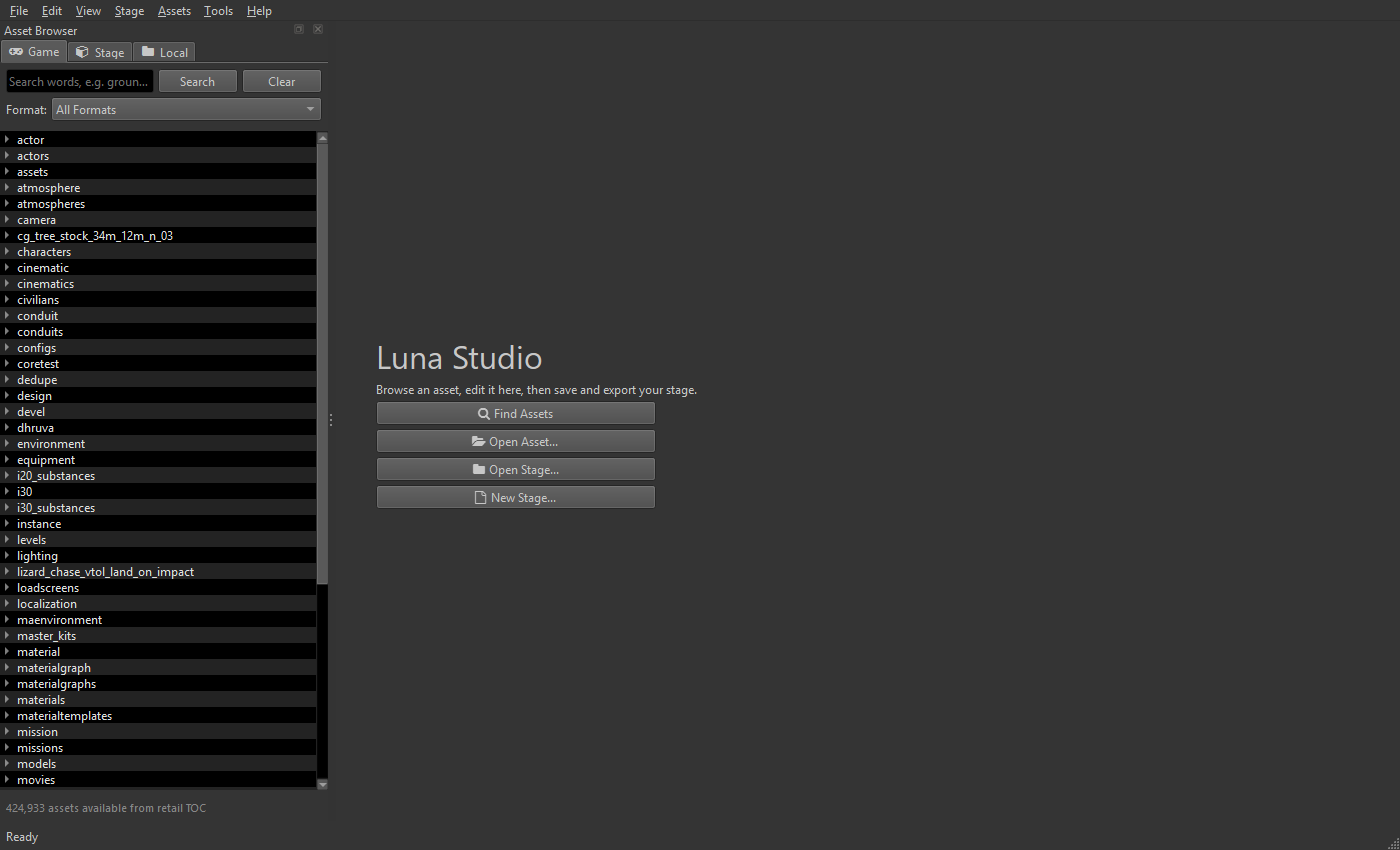
Interface overview
| Area | Location | Purpose |
|---|---|---|
| Asset Browser | Left dock | Browse retail toc archives (Game), manage your active mod folder (Stage), or open loose files on disk (Local). |
| Document tabs & toolbar | Center | View and edit open assets across tabs, with Save, Undo/Redo, Build, Export JSON, and log status badges at the top of each tab. |
| Inspector | Right dock (auto-shown) | Displays editable properties when you select an item that uses the shared Inspector, such as a graph node. |
| Output log | Bottom dock (on demand) | Shows asset load timings, build messages, Overstrike test output, warnings, and errors. |
Asset Browser tabs (left dock)
The Asset Browser contains three tabs at the top, each dedicated to one source of files:
Game tab (retail archives)
Lists every asset indexed from your Marvel's Spider-Man 2 toc file.
- Multi-word search: Click the search field (or press Ctrl+P from anywhere) and enter keywords in any order. Typing
ground o33 zonematches every path containing all three terms and ranks direct filename matches first. - Format filter: Use the Format dropdown below the search field (for example,
.model,.actor,.config,.texture, or.zone) to narrow results to a single asset type. - Context menu actions: Right-click any retail asset to Open in Editor, Extract to Active Stage (writes an unmodified copy into your Stage), Duplicate to Stage as... (clones a retail asset under a new custom virtual path), Copy Asset Path, or Copy Asset ID (Hex).
Stage tab (active mod project)
Displays the contents of your currently open Stage folder.
- Project selector: Create a new Stage, open an existing Stage folder, or switch between recent projects from the dropdown at the top.
- Stage toolbar:
- Export (Ctrl+E): Packages runtime spans (
0/,1/) andinfo.jsoninto a.stagemod archive. - Test: Packages and installs your active Stage via Overstrike. Use the arrow beside Test to choose Test Stage & Launch.
- Utility buttons: Import external files into the Stage, reveal the Stage folder in Windows File Explorer, or refresh the file tree.
- Export (Ctrl+E): Packages runtime spans (
- Context menu actions: Right-click staged files to Revert to Game Retail, Show in Explorer, Copy Full Path, Copy Virtual Path (strips
0/), or Rename file....
Local tab (workspace folder)
Browses any regular directory on your computer (Choose Folder... or File > Open Folder..., Ctrl+Alt+O). Use this tab to inspect standalone files such as the bundled examples/ folder without adding them to a Stage first.
Document tabs and shared asset toolbar
Double-clicking any supported asset opens it in a document tab in the center workspace.
- Unsaved indicator (
*): An asterisk before a tab name (such as*hero_config.config) indicates unsaved changes. Press Ctrl+S to save the current tab or Ctrl+Shift+S to save all modified tabs. - Tab context menu: Right-click any tab title to close other tabs, close all tabs, or copy the asset path.
- Shared toolbar actions:
- Save (Ctrl+S): Writes native game assets into your active Stage, or saves local/project files in place.
- Undo / Redo (Ctrl+Z / Ctrl+Y): Steps backward or forward through edits in the active tab.
- Recompile / Build (F7): Compiles editable project files (such as
.lttexture,.ltsurface,.ltmaterial, or.json) into native game binaries. - Export JSON...: Exports a readable
.jsonrepresentation of the asset structure for inspection or comparison. - Reload: Discards unsaved edits in the tab and reloads the saved version from disk.
- Warning and error badges: Located on the right end of the toolbar. Click either badge to open the Output dock filtered to warnings or errors.
Inspector and Output docks
- Inspector (right): Appears automatically when an active editor selects an element that exposes Inspector properties. You can toggle this behavior under View > Workbench > Context-Sensitive Inspector.
- Output (bottom): Open it at any time via View > Workbench > Output or by clicking the warning/error counters on the asset toolbar.
TIP
If panels ever end up undocked or closed accidentally:
- Select View > Layout > Reset Workbench Layout to restore the main Asset Browser, Inspector, and Output docks.
- Inside multi-panel editors such as Zones or Cinematics, select View > Layout > Reset Active Asset Layout to reset the sub-panels inside the active tab, or reopen individual panels from View > Panels.
3D viewport camera controls
Luna Tools includes two types of 3D viewports: the Object Viewer (for single .model, .material, and animation assets) and the Zone Viewport (for full 3D world scenes).
Object Viewer (models, materials, and animations)
| Camera action | Mouse input |
|---|---|
| Orbit (rotate around target) | Left-drag on empty background space |
| Pan (slide camera) | Right-drag |
| Zoom | Scroll wheel |
Zone Viewport
Zone editors support two camera presets. Switch between them in Edit > Preferences... (Ctrl+,) under Viewport > Camera controls:
| Camera action | Blender preset (default) | Classic preset (no middle mouse button) |
|---|---|---|
| Orbit | Middle-drag | Left-drag on empty space |
| Pan | Shift + Middle-drag | Right-drag |
| Zoom | Scroll wheel, Ctrl + Right-drag, or + / - | Scroll wheel, Ctrl + Right-drag, or + / - |
Essential keyboard shortcuts
| Shortcut | Action |
|---|---|
| Ctrl+P | Focus the Asset Browser search bar |
| Ctrl+N | Open the Asset Wizard to create a new asset |
| Ctrl+Shift+N | Create a New Stage project |
| Ctrl+Shift+O | Open an existing Stage folder |
| Ctrl+S | Save the active tab |
| F7 | Build / recompile the active project file into a native game binary |
| Ctrl+E | Export the active Stage as a .stage mod archive |
| Ctrl+, | Open Preferences |
Additional resources
- Stages and project files: Review how Stage folders and virtual paths work.
- Make your first mod: Put these controls into practice by editing a game config and building a custom texture.
- Workbench navigation: Deeper reference on panel docking, tabs, and workspace management.