
Appearance
Workbench and UI Navigation
The Luna Tools workbench is built on a modular, dockable Qt / PySide6 Insomniac Fusion architecture. It provides a cohesive interface for editing 3D models, zone placements, cinematic timelines, and visual scriptgraphs.
1. Workbench Layout
The workbench provides a unified document-driven layout:
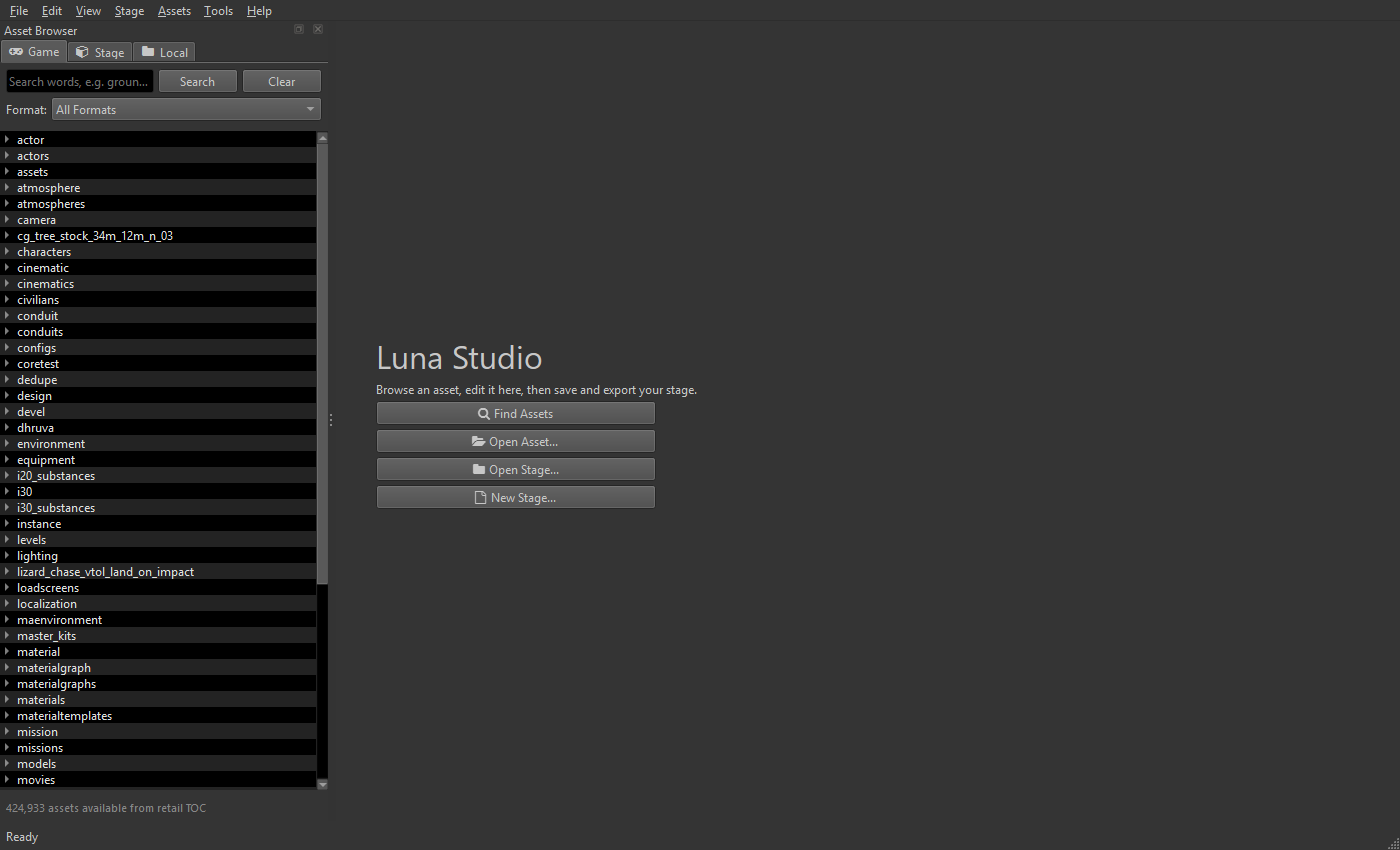
Luna Tools Workbench: Main Menu and Toolbar (top), Asset Browser (left), Document Workspace (center), Property Inspector (right), and Output Console (bottom).
Central Document Workspace
The central workspace manages open files via tabs, supporting reordering, split layouts, and dirty state indicators (• for unsaved changes).
Asset Browser (Left Dock)
The primary navigation panel:
- Dual Mode: Toggle between browsing the read-only Game TOC archive or filtering to active Stage project overrides.
- Search Filtering: Filter assets by name, path, or extension. Press Ctrl+P to focus the search field.
- Context Actions: Right-click assets to verify serialization, export formatted JSON, or reveal files on disk.
Property Inspector (Right Dock)
A dynamic, schema-driven introspection panel:
- Context Sensitivity: Automatically reflects selected actors, script nodes, joints, or material properties.
- Multi-Selection: Edit shared attributes across multiple selections simultaneously.
- Array Controls: Add, remove, and reorder dynamic list elements.
- Pin Exposure: Expose internal variables as node connection pins in scriptgraphs.
Output and Compiler Console (Bottom Dock)
Provides real-time feedback across system channels:
System: Initialization, memory allocation, and render bridge status.Theme: UI style application and color roles.Editor: Asset loading, document lifecycle, and file operations.Compiler: Bytecode compilation, shader diagnostics, and roundtrip results.
Status Bar (Footer)
- Active Stage: Displays the mounted Stage directory.
- Asynchronous Task Indicator: Displays progress during background decompression.
- Status Messages: Feedback on completed actions and error states.
2. Menu Bar Reference
File Menu
| Action | Shortcut | Description |
|---|---|---|
| New Asset… | Ctrl+N | Opens the Asset Wizard to create an asset from a certified template. |
| New Area… | - | Opens the Area Workshop to generate a custom playable streaming zone. |
| Open Asset… | Ctrl+O | Opens a file dialog to load an asset from disk. |
| Open Folder… | Ctrl+Alt+O | Sets the Asset Browser root to a custom directory. |
| Save | Ctrl+S | Saves the active document to the active Stage folder. |
| Save All | Ctrl+Shift+S | Saves all modified open document tabs. |
| Close Active Tab | Ctrl+W | Closes the current document tab. |
| Close Other Tabs | - | Closes all open tabs except the active document. |
| Close All Tabs | - | Closes all open document tabs. |
| Exit | Alt+F4 | Closes Luna Tools. |
Edit Menu
| Action | Shortcut | Description |
|---|---|---|
| Undo | Ctrl+Z | Reverts the previous edit in the active document. |
| Redo | Ctrl+Y | Re-applies the undone edit. |
| Cut / Copy / Paste | Ctrl+X / C / V | Standard clipboard operations. |
| Select All | Ctrl+A | Selects all nodes or elements in the active view. |
| Preferences… | Ctrl+, | Opens the global settings window. |
View Menu
| Action | Shortcut | Description |
|---|---|---|
| Viewport | Submenu | Toggle camera modes, wireframe display, lighting presets, and grid visibility. |
| Panels | Submenu | Toggle child panels for the active document. |
| Workbench | Submenu | Toggle Asset Browser, Inspector, Output Console, and Context-Sensitive Inspector. |
| Reset Workbench Layout | - | Restores all docks to their default arrangement. |
| Reset Active Asset Layout | - | Restores child panels of the current document to default positions. |
| Find Assets | Ctrl+P | Moves focus to the Asset Browser search input. |
| Symbols… | - | Opens the Symbol Browser to inspect types and schemas. |
| Refresh Asset Browser | Ctrl+Alt+R | Rescans disk directories and updates asset listings. |
| Next / Previous Asset | Ctrl+Tab / Ctrl+Shift+Tab | Switches between open tabs. |
| Theme | Submenu | Switch theme between Default, Dark, and Light. |
Stage Menu
| Action | Shortcut | Description |
|---|---|---|
| New Stage… | Ctrl+Shift+N | Creates and mounts a new Stage project folder. |
| Open Stage… | Ctrl+Shift+O | Mounts an existing Stage directory. |
| Recent Stages | Submenu | List of recently mounted Stage paths. |
| Import File into Stage… | - | Copies external files into the Stage directory. |
| Export Mod (.stage)… | Ctrl+E | Packages the active Stage into a .stage distribution archive. |
| Show Stage in Explorer | - | Opens File Explorer at the active Stage directory. |
| Test Stage | - | Injects staged assets into the local game environment. |
| Test Stage & Launch | - | Injects staged assets and launches the game executable. |
| Launch Game | - | Runs the game executable with configured parameters. |
| Close Stage | - | Unmounts the active Stage and returns to read-only browsing. |
Assets Menu
| Action | Shortcut | Description |
|---|---|---|
| Create Cinematic Sequence… | - | Initializes a new .ltcinematic multi-track timeline. |
| Create Custom Material Shader… | - | Creates an interactive .ltsurface shader graph. |
| Import WAV as New Sound… | - | Converts and imports audio files into native sound events. |
| Stage Audio Library… | - | Opens the staged sound bank and event manager. |
| Recompile Active Binary | F7 | Compiles the active document to native binary. |
| Verify Roundtrip Integrity | Ctrl+R | Runs bidirectional serialization checks to guarantee integrity. |
| Export JSON… | - | Decompiles the active asset into structured JSON. |
| Export PNG / DDS… | - | Exports image data from texture assets. |
| Replace Image… | - | Replaces image data in the active texture project. |
| Reload Active Asset… | - | Discards unsaved modifications and reloads the file from disk. |
| Copy Asset Path | - | Copies the logical relative game path to clipboard. |
Tools and Help Menus
| Action | Shortcut | Description |
|---|---|---|
| Set Game TOC File… | - | Sets the path to the game's Table of Contents index. |
| Batch Verify Local Folder… | - | Recursively verifies all binary assets in a directory. |
| Clear Output | - | Clears text from the Output Console dock. |
| Editor Workflow | - | Opens the built-in workflow documentation. |
| About Luna Tools | - | Displays version information and notices. |
3. The Asset Wizard
New assets are created through the Asset Wizard (File → New Asset… or Ctrl+N):
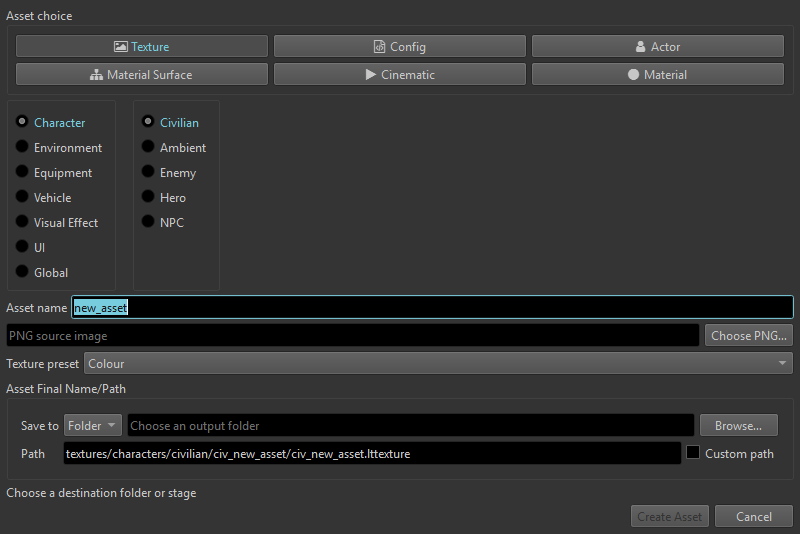
Asset Wizard Dialog: Select an asset category, configure initial template parameters, and set the destination path.
- Category Browser (Left): Filter by category (World/Zones, Actors & Models, Materials & Shaders, Cinematics, Animation, Configs).
- Template Parameters (Center): Set asset identifiers, base meshes, initial materials, or collision profiles.
- Destination Path (Bottom): Sets the destination within the active Stage project.
4. Preferences
Access global configuration options via Edit → Preferences… (Ctrl+,):
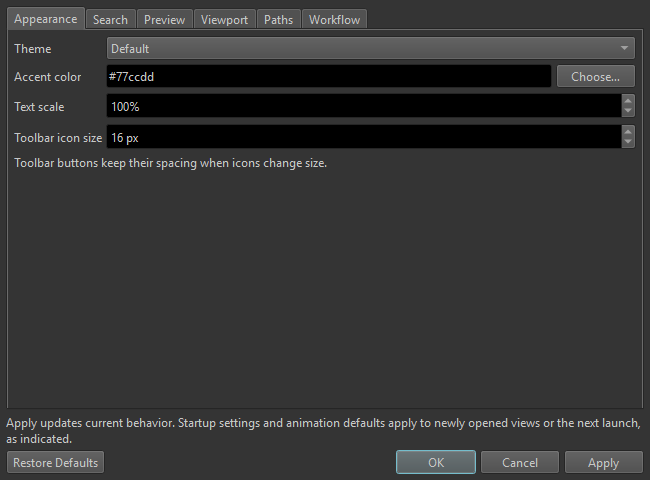
Preferences Window: Configure appearance, search indices, preview scaling, viewport navigation, and toolchain paths.
- Appearance: Adjust theme, accent color, text scaling, and toolbar icon sizes.
- Search: Configure live search delays, result limits, and search cache persistence.
- Preview: Configure rendering resolution scale, interaction scale, and framerate limits.
- Viewport: Choose between Blender and Classic camera controls, and toggle Level Builder previews.
- Paths: Set the default workspace, export directory, Game TOC, and Shader SDK location.
5. Viewport Navigation and Camera Controls
For 3D document editors (Models, Zones, Levels, and Cinematics), Luna Tools supports standard viewport navigation:
| Navigation Action | Input Mapping |
|---|---|
| Orbit Camera | Hold Alt + Left Click & Drag around the focus point. |
| Pan Camera | Hold Middle Mouse Button (or Alt + Middle Click & Drag). |
| Zoom / Dolly | Scroll Wheel or hold Alt + Right Click & Drag. |
| Focus Selection | Press F to center the camera on the selected object or node. |
| First-Person Fly Mode | Hold Right Mouse Button and navigate using W, A, S, D, Q (down), and E (up). |
| Camera Acceleration | Hold Shift during fly mode to increase movement speed by 5x. |
6. Docking and Layout Customization
- Panel Reordering: Drag panel headers to redock them side-by-side, tabbed, or along any window edge.
- Floating Panels: Drag panels outside the main window to position them on secondary displays.
- Context-Sensitive Inspector: When View → Workbench → Context-Sensitive Inspector is enabled, the Inspector dock automatically transitions to match the active document tab.
- Layout Reset: Select View → Layout → Reset Workbench Layout to restore the default docking arrangement.
Proceed to Local Data and Dependencies to configure search indices and decompression binaries.